Posts

Showing posts with the label Networking

Download Internet Explorer 9 IE9 2011 Final Latest Free

Image
I will share about Download Internet Explorer 9 Final Latest 2011 that he says is faster than other browsers, we just try ok. According to Microsoft, this latest IE comes with a new force that is much better than before. IE9 also made to optimize the Windows 7 Operating System, as well as Graphics Processing chip that can deliver video visuals, games, graphics are good and satisfactory. IE9 also supports the use of the HTML5 and UI improvements. Microsoft also claims that popular sites like Facebook , Twitter, Pandora, Hulu, and Yahoo have adapted their websites to IE9 . And Microsoft is also touting the security features that IE9 better and have a strong filter against malware IE9 first attended last year with a beta release, and a total of up to Release Candidate was downloaded more than 40 million times enumerated by all users in the world. On the basis of these facts ought to be better IE 9 present in order to remain competitive with other browsers that are curre...

About 4G Wireless Technology - WiMAX

Image
4G technology is next technology of 3G technology. This technology provides access speed 100 Mbps (Mega bits per second) to 1 Gbps (Giga bits per second) with quality-assured data security and delivery information in real time. 4G technologies are created for the wireless applications such as MMS, video chat, mobile TV, High Definition Television (HDTV), and DVB (Digital Video Broadcasting). 4G Standardization WiMAX is a technology that is very busy talking a lot of people as the future 4G technologies. Using IEEE 802.16 WiMAX standard. 802.16 standard included in the category of WMAN (Wireless Metropolitan Area Network). 802.16 standard has data transfer speeds up to 70 Mbps with network coverage reaching 5 kilometers. IEEE (Institute of Electrical and Electronic Engineers) has assign several wireless communication standards into 4 categories: WPAN ( W ireless P ersonal A rea N etwork) WPAN has maximum range of the network up to 10 meters. Examples of the use of WPAN is Bluetooth. W...

Remote the other computer through your computer easily

Image
Have you ever think to operate the other computer through your computer ?. Maybe some of you have know its. If you a computer teacher who sick over because your students is not attention to you while you teaching (your students have preoccupation with chatting, download, facebook, games, etc). These softwares is for you who want to control activity of computer users in laboratorium. You can view the screen of other computer through your computer. These software are remote control software. So many remote control software in computer world, but I just explain 3 softwares ( Remote Administrator , Net Support Manager , Virtual Network Connecting ). It very helps you to control the other computer. By these softwares you can: - View the screen of the other computer (client computer) through your computer - Operate the other computer (client computer) through your computer - Turn off the other computer (client computer) through your computer - Open/Close the CDROM of the other computer...

How to use Remote Administrator (Radmin)

Image
First you must download Radmin from www.radmin.com . For example I use Radmin v.3.1 . Install Radmin Viewer on your computer (computer that use to remote the other computer) and install Radmin Server on Client Computer (computer that you want to remote). See: How to install Radmin Viewer How to install Radmin Server How to remote the other computer through your computer by use Radmin: 1.Open Radmin Viewer by click Start Menu > All Program > Radmin Viewer 3 > Radmin Viewer 3 2.Click New Connection 3.Type IP Address of the computer that you want to remote 4.Type username and password and click OK to remote the other computer. Note: username and password must same as settings you’ve been created when you were installed Radmin Server. See How to install Radmin Server. 5. Screen of the remoted computer will be shown. 6.Click on toolbar of Radmin to other function (file transfer, chat, shutdown/restart the remoted computer,etc) Relevant articles: How to install Radmin Viewer Ho...

How to use Net Support Manager (NSM)

Image
Install Net Support Manager (NSM) . You can download from www.netsupportmanager.com . Install Net Support Control on your computer (computer that use to remote the other computer) and install Net Support Client on Client Computer (computer that you want to remote). See: How to Install Net Support Control How to Install Net Support Client How to remote the other computer through your computer by use Net Support Manager (NSM) 1.Open Net Support Control. Click Start menu > All Programs > NetSupport > NetSupport Control. 2.Click “Browse” button on the toolbar. 3.Click OK to autodetect the Client Computer that connected to your computer. 4.The connected computer will be shown on the list. 5.Right click on the computer you want to remote and select function. For example I want to view the screen of client computer, so I select “View”. 6.Screen of the computer that you remote will be shown. Now you can control the other computer through your computer. Relevant articles: How to Inst...

How to use Virtual Network Connecting (VNC)

Image
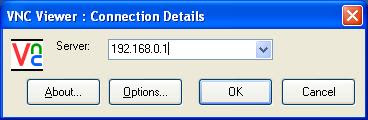
First you must install Virtual Network Connecting . You can download it from http://www.realvnc.com/ if you don’t have. Install VNC Viewer on your computer (computer that use to remote the other computer) and install VNC Server on Client Computer (computer that you want to remote). See: How to install VNC Viewer How to install VNC Server How to remote the other computer through your computer by use Virtual Network Connecting (VNC) 1.Open VNC Viewer on the desktop 2. Type IP address of the computer you want to remote and click OK 3. Type username and password and click OK to remote the other computer. Note: username and password must same as settings you’ve been created when you were installed VNC Server. See How to install VNC Server. 4. Screen of the remoted computer will be shown. Now you can control the other computer through your computer . Related articles: How to install VNC Viewer How to install VNC Server Remote the other computer through your computer easily

How to install Radmin Viewer

Image
1.Open Radmin Viewer setup. 2.Click Next to start installation. 3.Click on “I accept the term in the licence agreement. Click next. 4.Click next again. 5.Select destination folder (default location: C:\Program Files\Radmin Viewer 3). Click next. 6.Click Install to start copying files Wait until finished. 7.Click Click Finish to close installation. Relevant articles: How to install Radmin Server How to use Remote Administrator (Radmin) Remote the other computer through your computer easily

How to install Radmin Server

Image
1.Open Radmin Server setup. 2. Click next to start installation 3.Click on “I accept the term in the licence agreement”. Click next. 4.Click Install to start copying files Wait until finished. 5.Click Click Finish to close installation. Make sure “Configure user access rights for Radmin Server” is marked. 6.Click “Options” on Settings for Radmin Server. 7.Click “Radmin security” and click “Permissions” 8.Click “Add User” to add user who can remote the computer. 9.Type username (up to you) and type password at least 6 characters (up to you). 10.Mark all the checkbox. Click OK 11.Click Exit. Relevant articles: How to install Radmin Viewer How to use Remote Administrator (Radmin) Remote the other computer through your computer easily

How to install VNC Viewer

Image
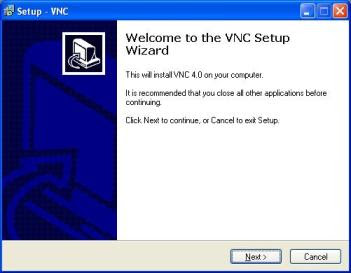
1.Open VNC setup. 2.Click next to start installation. 3.Click on “I accept the agreement”. Click next. 4.Select destination location (default location: C:\Program Files\RealVNC/VNC4). Click next. 5.Select VNC Viewer. Click next 6.Select place the program shortcut. Click next 7.Click “Create a VNC Viewer desktop icon” to create program’s icon on your desktop. Click next 8.Click Install to start copying files. 9.Clik next and finish Relevant articles: How to install VNC Server How to use Virtual Network Connecting (VNC) Remote the other computer through your computer easily

How to install VNC Server

Image
1. Open VNC setup. 2. Click next to start installation. 3. Click on “I accept the agreement”. Click next. 4. Select destination location (default location: C:\Program Files\RealVNC/VNC4). Click next. 5. Select VNC Server. Click next 6. Select place the program shortcut. Click next 7. Make sure all options are marked. Click next 8. Click Install to start copying files. 9. Click “Set Password” on VNC Server Properties. Type password and clik OK. 10. Click next and finish Relevant articles: How to install VNC Viewer How to use Virtual Network Connecting (VNC) Remote the other computer through your computer easily