Posts

Need For Speed Underground 2 Save game

Click below to download Need For Speed Underground 2 Save game . This save game was completed 100% of career. All cars and all shops have been unlocked. Nice to play NFS Underground 2.. click here to download NFS Underground 2 save game

Need For Speed Most Wanted (NFS Most Wanted) Save game

Click below to download Need For Speed Most Wanted Save game . This save game is level 2 (#2) - Blacklist #2 Bull - Toru Sato. All cars have been unlocked. Nice to play NFS Mostwanted.. click here to download save games

Change the file(s) attribute from Command Prompt

There are some file attribute: - Read Only - Hidden - System - Archive You can change this attribute by accessing "Properties" of the file(s). But you can't do it all by this way. You can check or un-check "Read Only", "Hidden" and "Archive", but you can not change check box of "System" attribute. By Command Promp t you can access and change all of attribute. For example: 1. You will check "Read Only" of your file (ex: data.txt). So you just type "attrib +r data.txt" and press ENTER. To un-check "Read Only" of your file you just type "attrib -r data.txt" and press ENTER. 2. You will check "Hidden" of your file (ex: data.txt). So you just type "attrib +h data.txt" and press ENTER. To un-check "Hidden" of your file you just type "attrib -h data.txt" and press ENTER. 3. You will check "System" of your file (ex: data.txt). So you just type ...

Add sub-menu in "Send To" of context menu (right click)

Image
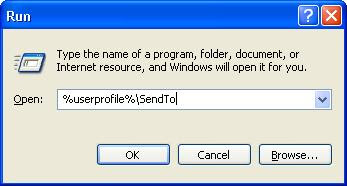
You can add sub-menu in "Send To" of context menu (right click) easily. 1. Copy your target folder. For example "DATA" folder in D:\DATA. 2. Click on Start Menu and select "Run" 3. Type "%userprofile%\SendTo" and press ENTER. 4. Right Click in SendTo folder and select "Paste Shorcut". 5. Try to Right Click on your file(s) and select "Send To". You will see sub-menu "DATA" that you've created.

Tutorial – Microsoft Windows Vista Installation

Image
How to install Microsoft Windows Vista 1. First, enter BIOS and configure it for First Boot form CD/DVD 2. Insert Windows Vista DVD into your DVDROM drive 3. Press any key when see text “Press any key to boot from CD or DVD .." on your screen 4. Installer will load Windows files 5. It will show boot screen for a few second 6. You will see dialog box “Install Windows”. Select language, time format and currency. Click Next 7. Click “Install Now” 8. Type CD Key Microsoft Windows Vista (25 digit), click “Automatically activate Windows when I’m online” if you want Windows activate automatically when your computer online. 9. Click "I accept the licence term" for accept the licence. Click Next 10. Click "Custom (advanced)" 11. Select partition you will be used for operating system, for example I choose Partition 3 (min 10 GigaByte). Click "Drive options (advanved) 12. You can format the selected partition. Click Next 13. This is installation process. Please wai...
Tutorial - Microsoft Windows XP Installation

Image
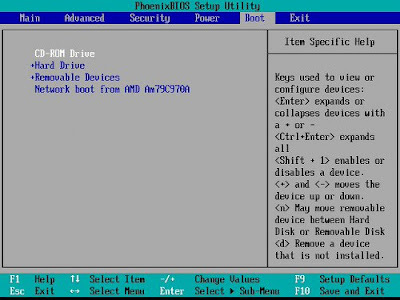
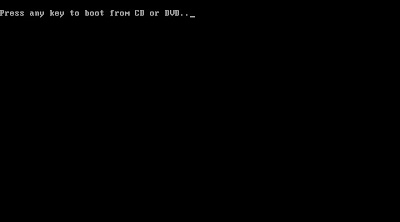
windows XP is one of operating system which still a lot of used. How to install operating system. How to install windows xp 1. Enter BIOS setup by press "Del" button or "F2" button on the keyboard. It is depend on motherboard of your PC. 2. Enter "Boot" menu. Make sure first boot of CD-ROM. 3. Exit BIOS and save changes. Computer will restart automatically. 4. Press any key to boot from CD. 5. Setup load the files. 6. Press "ENTER" to setup windows xp. 7. Press "F8" to agree the EULA (End User Licence Agreement). 8. Press "C" to create partition. 9. Type size of partition (in MB). 10. Press "C" again to create logical partition. 11. Type size of partition (in MB). 12. Make sure C: is highlighted. Press "ENTER" to Install on drive C: 13. Select no 3 "Format the partition using the NTFS file system" and press "ENTER". 14. Setup is formatting the partition. Wait until 100%. 15. Setup is cop...